

The full written guide
This covers everything in the video and more, step by step. You don't need to read it all: jump to the part for your job.
Which part is for me?
There are two products that work together:
- ElectorEra is the website, used at a desk. Staff use it to find voters, plan the work and see results.
- MiniElect is the phone app, used on the street. Volunteers use it to see their doors and record what happened.
| If you are… | You'll use | Start with |
|---|---|---|
| A volunteer who knocks doors | The app | Install MiniElect, then Vera's example |
| An organizer or field lead | The website and the app | Fred's example, then organizer tools |
| An administrator | Mainly the website | Roles, then the website steps |
| Working without a campaign account | The app only | Using the app without an account |
Roles and what they can do
Your role decides what you see, so your menu may be shorter than the ones described here. If something you need is missing, ask your administrator.
| Role | Typical job |
|---|---|
| Super Administrator | Has full access, including managing administrators. |
| Organization Administrator | Runs the organization: users, roles, campaigns and settings. |
| Campaign Administrator | Runs one campaign. |
| Field Director | Plans door-knocking, cuts turfs and manages volunteers. |
| Organizer | Looks after a group of volunteers and their turfs. |
| Phone Bank Manager | Runs phone calling. |
| Volunteer | Sees only their own doors and records results. |
| Data Manager | Brings in data and keeps it clean. |
| Analyst | Reads reports and analytics. |
| Export Approver | Approves or rejects other people's requests to download data. |
| Auditor | Reviews who did what. |
Giving someone a role: administrators do this under Users, or in the app under Organize → Users and roles. You can only give a role whose permissions you already hold yourself, so nobody can hand out more power than they have.
Example 1: Fred plans a Saturday canvass
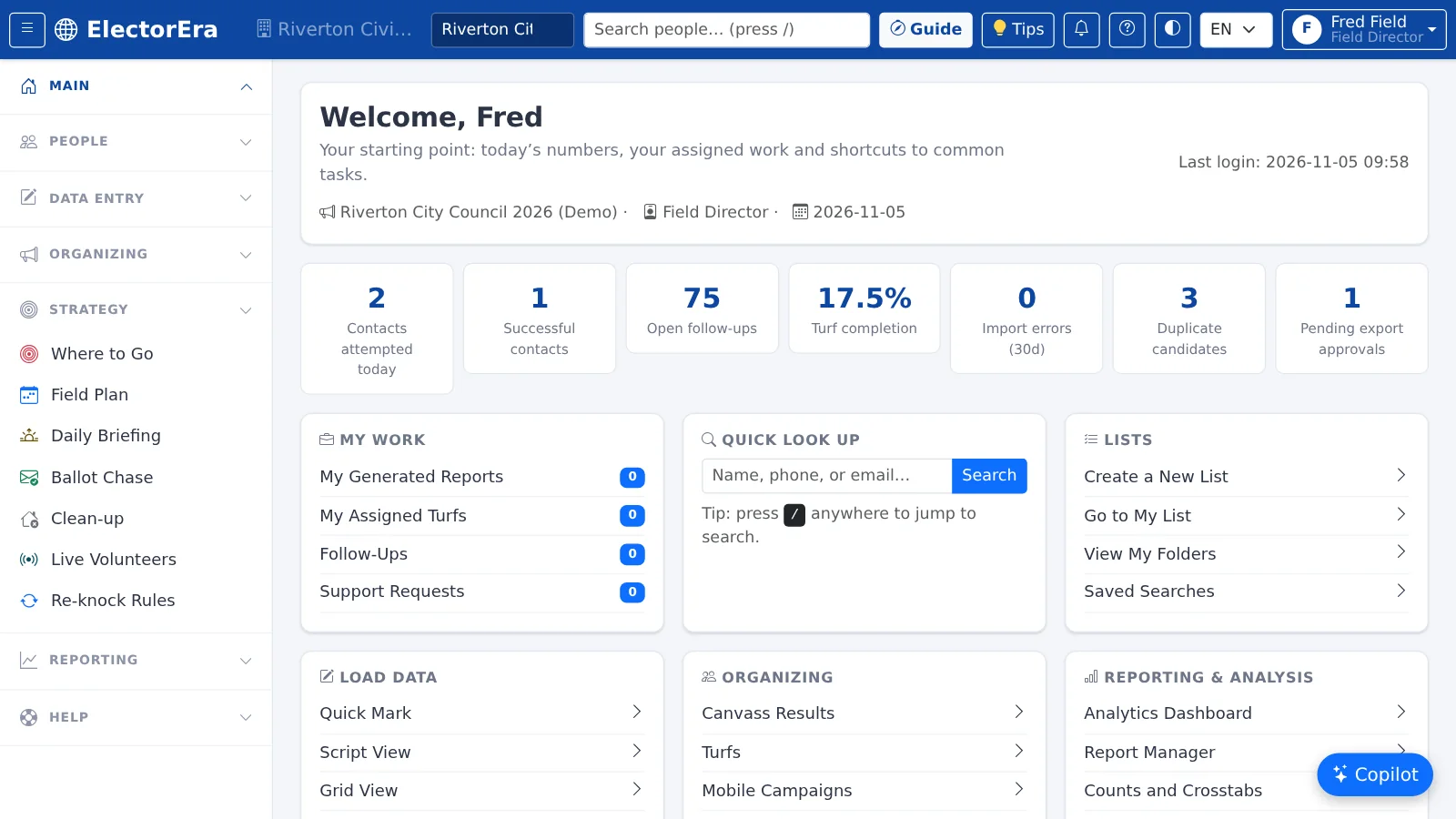
Fred runs the field program in Riverton, a made-up town. He has 10 volunteers free on Saturday. His goal is to spend their time where it counts most.
- He chooses where to go. He opens Where to Go and sees precincts sorted into groups. Two are marked Turnout opportunity: people there favor his candidate, but fewer of them voted last time. He picks those.
- He sets a pace. In Field Plan he enters 10 volunteers, 1 shift a week and 40 doors a shift, then presses Build plan. That's a goal of 400 doors a week.
- He makes the walking areas. On the strategy page he presses Cut turfs, chooses a precinct and sets 40 doors per turf. ElectorEra groups voters into households and splits them into turfs he can check before use.
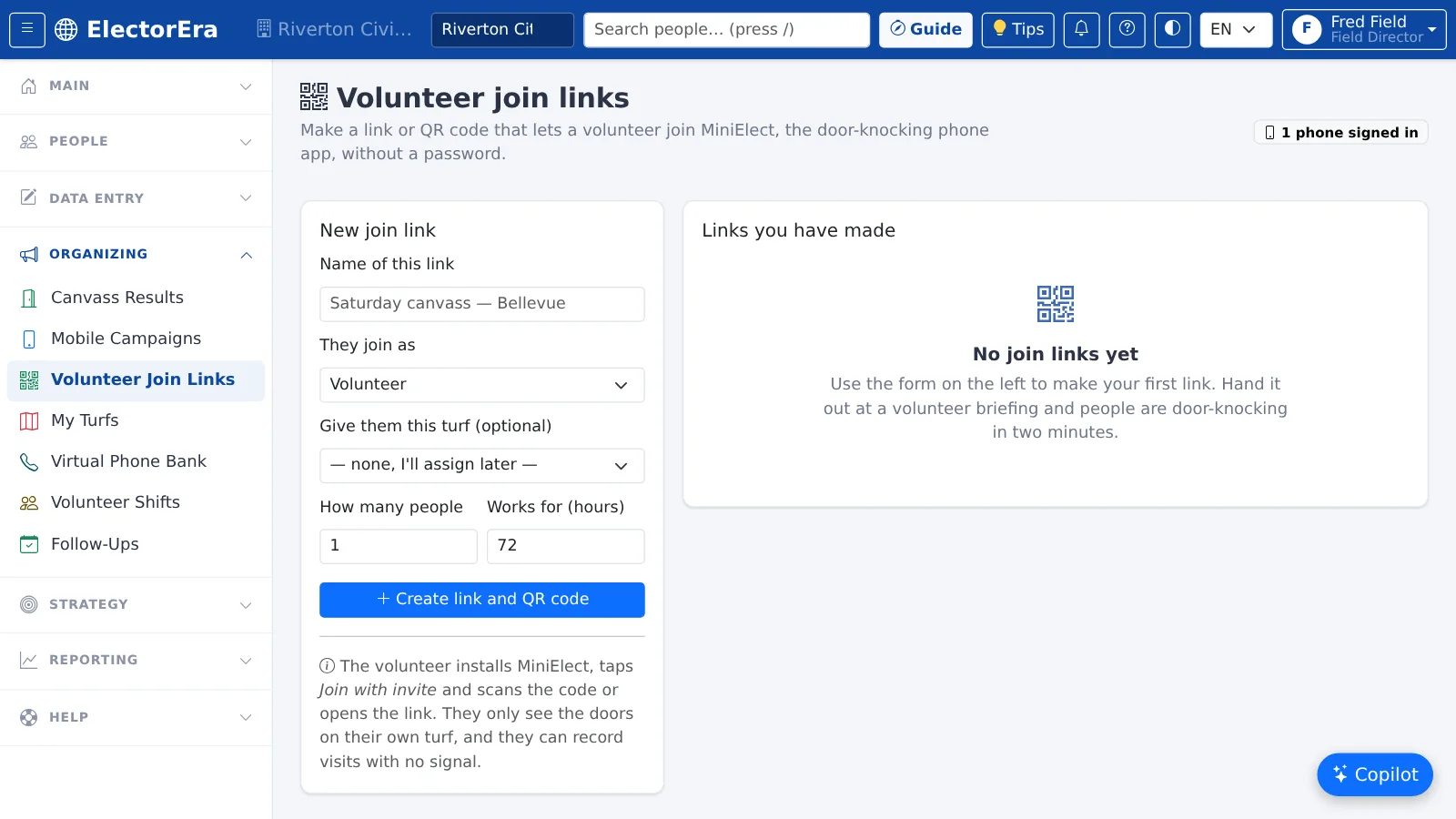
- He gets people signed up. Under Volunteer Join Links he names a link "Saturday canvass", sets it to 10 people and presses Create link and QR code. He copies it straight away, because it is only shown once, then shows the QR code at the briefing.
- He hands out turfs. Each volunteer gets a turf of their own, assigned from the link on the home page.
- He watches the day. Live Volunteers shows who is out. That evening, Canvass Results and Daily Briefing show how many doors were knocked and how many conversations happened, compared with the plan.
Example 2: Vera knocks her first doors
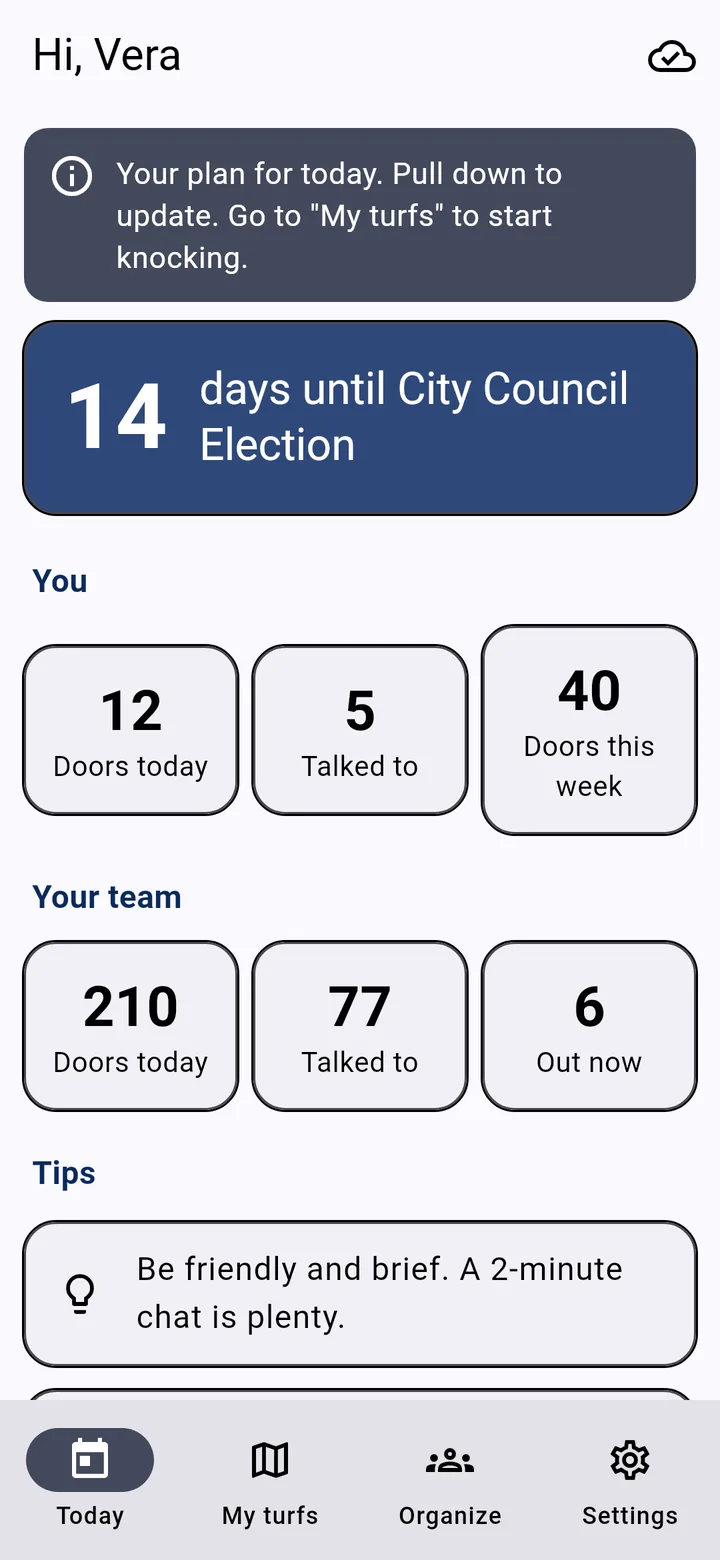
Vera volunteers on Saturdays. She has never used the app. Fred shows a QR code at the briefing.
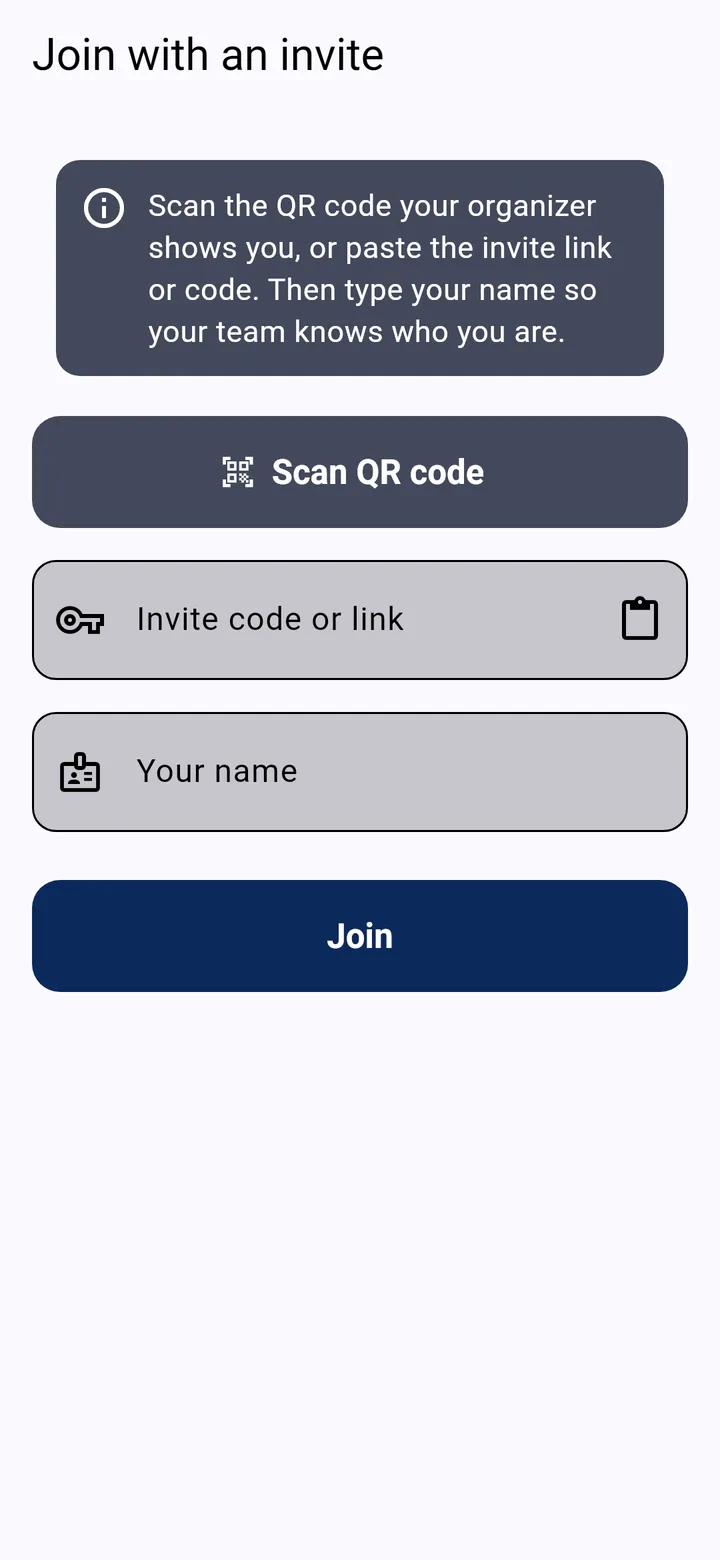
- She joins. She opens MiniElect, taps Join with an invite, taps Scan QR code and types her name. She doesn't need a password.
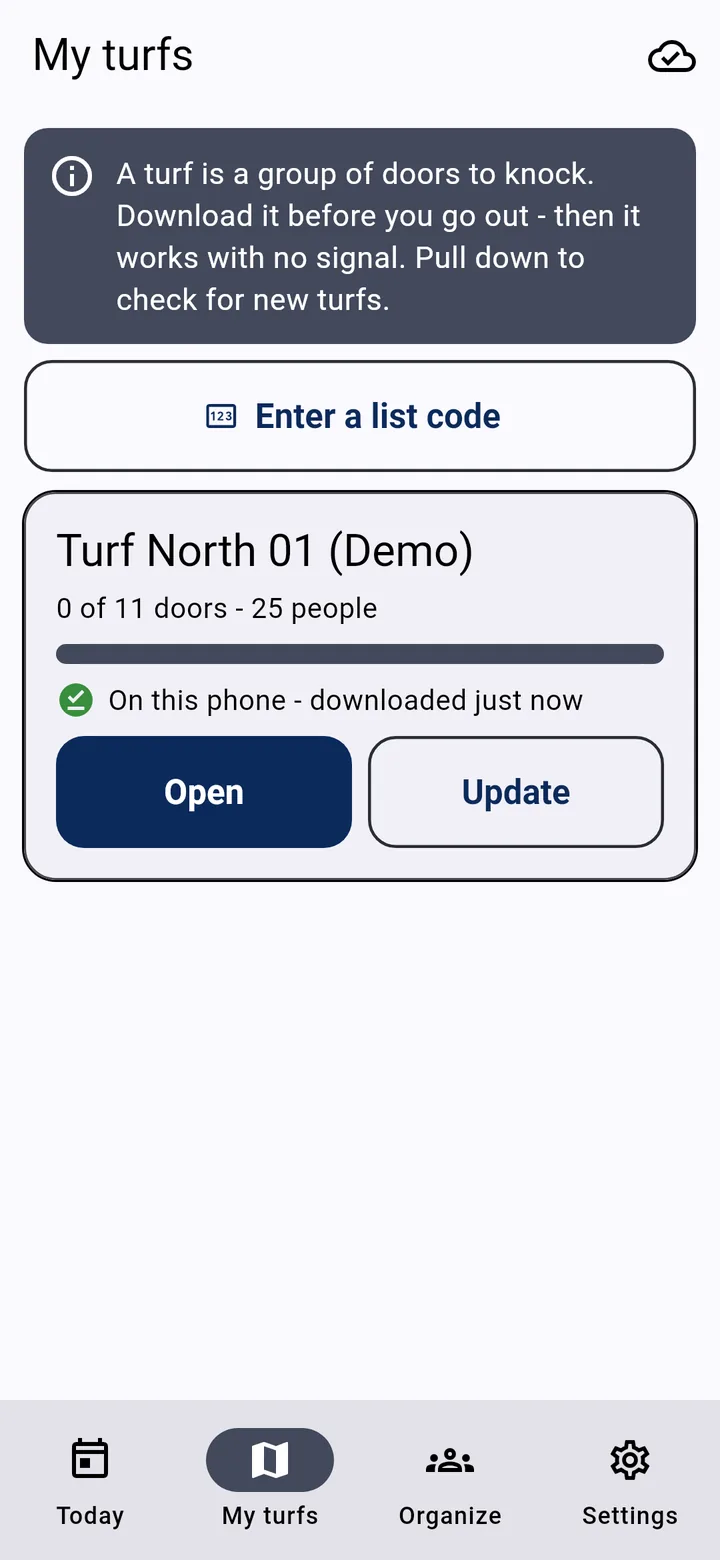
- She downloads her list while she has signal. In My turfs she taps Download. The turf now says "On this phone", so it will work anywhere.
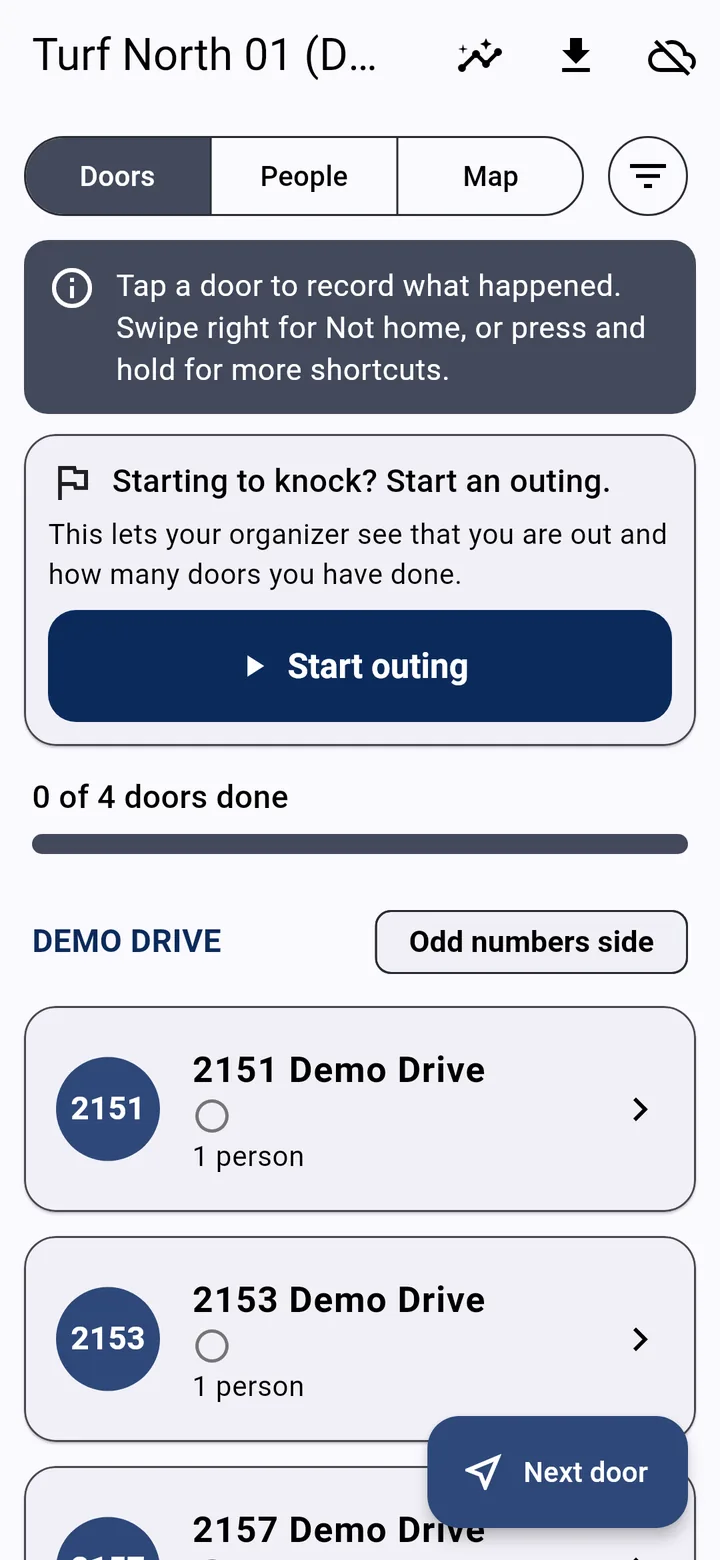
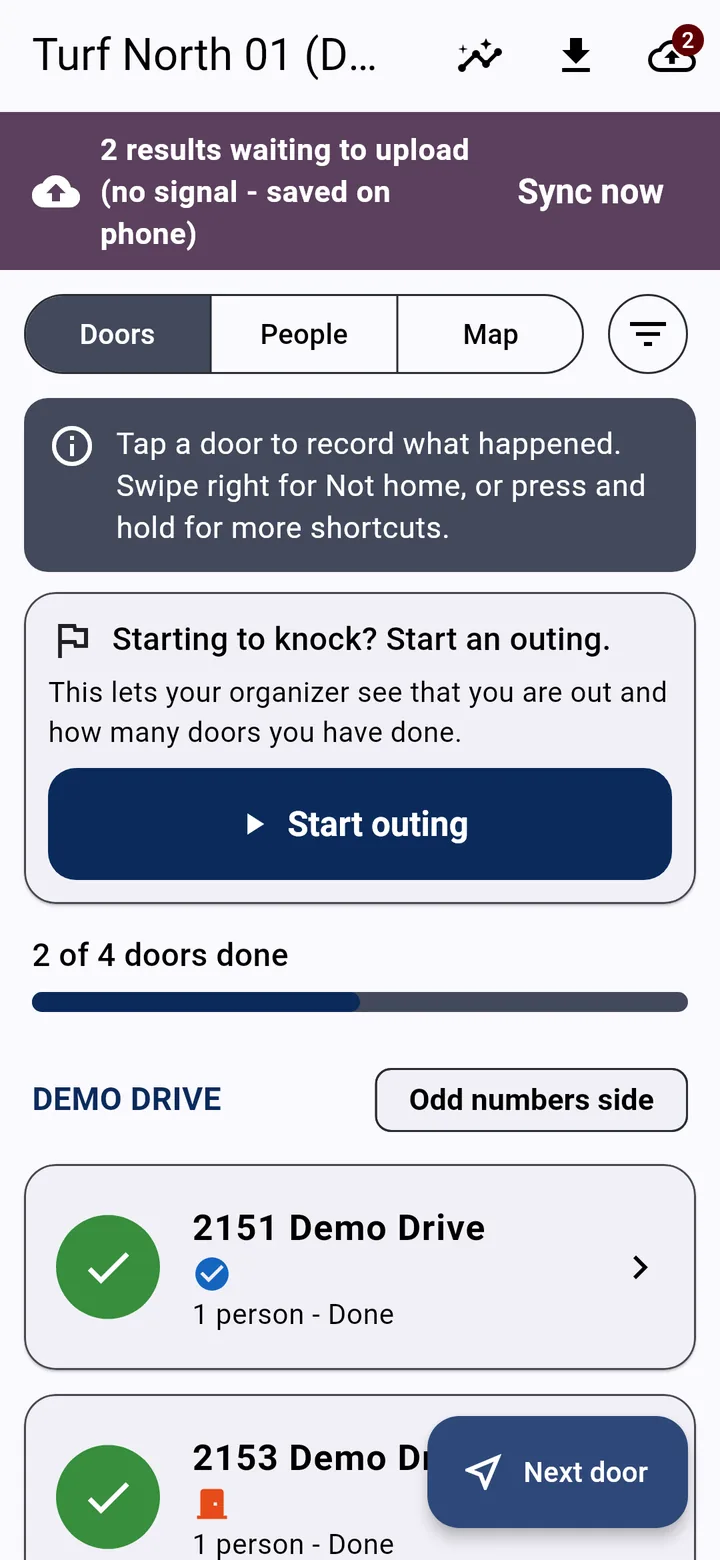
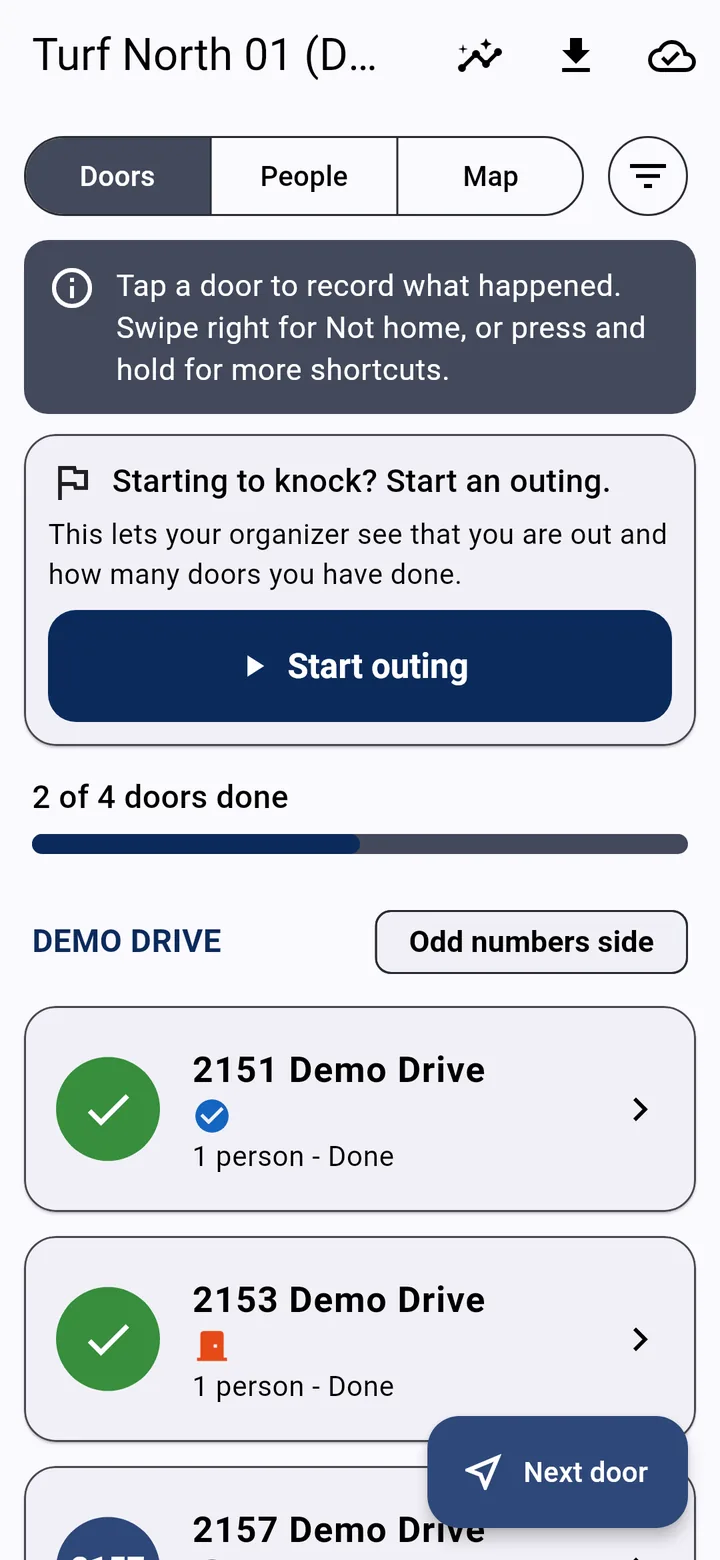
- She starts. She taps Open, then Start outing. The doors are in walking order, one side of the street at a time. She can also tap Map to see them as pins, or Next door to go to the closest one.
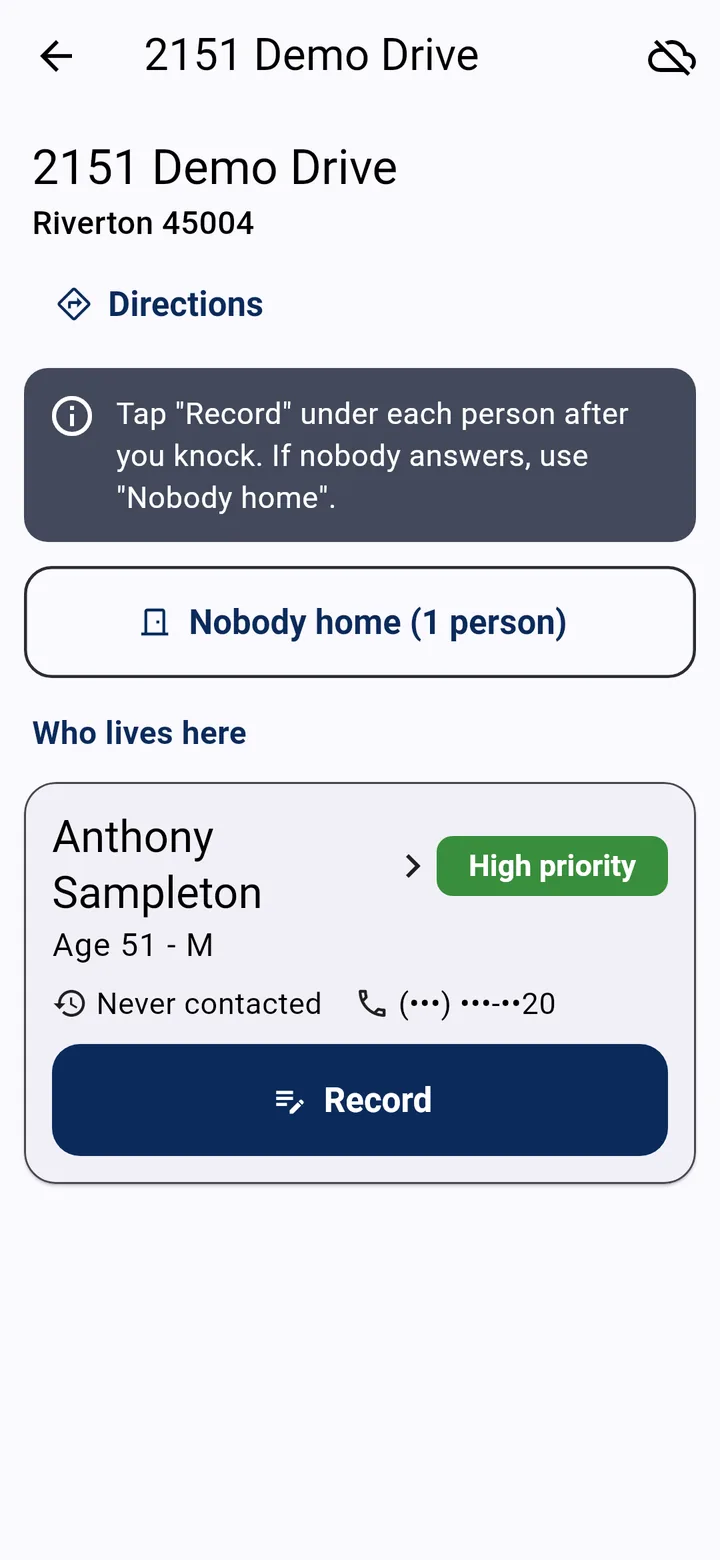
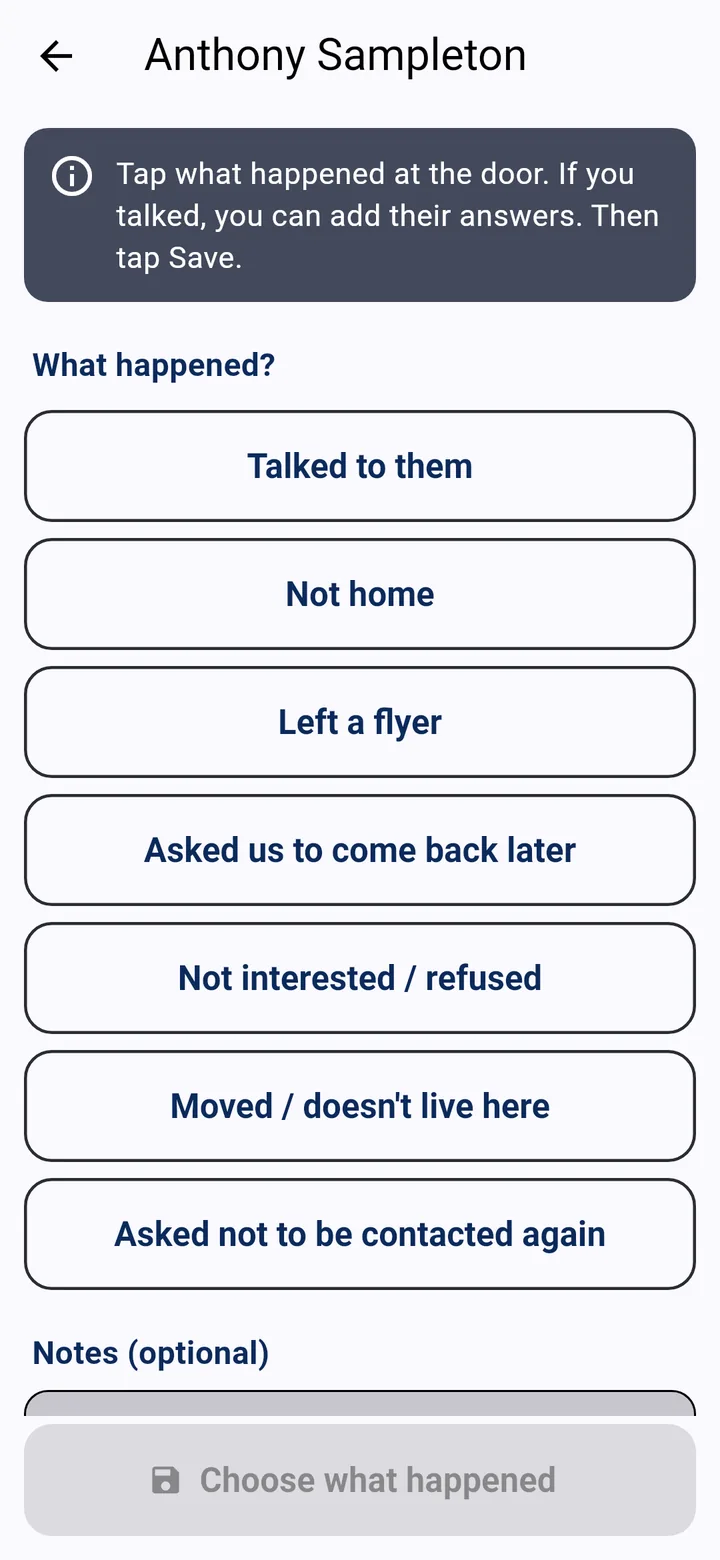
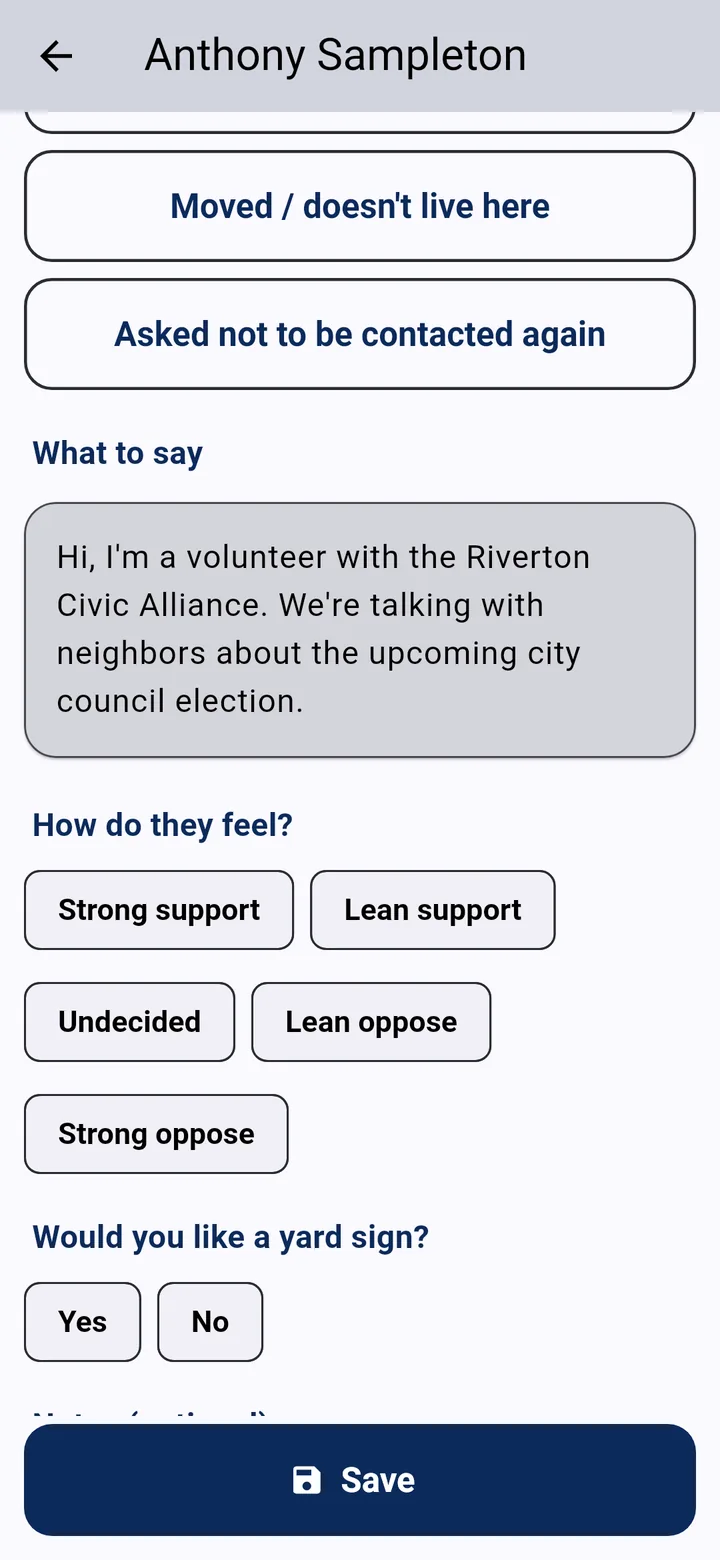
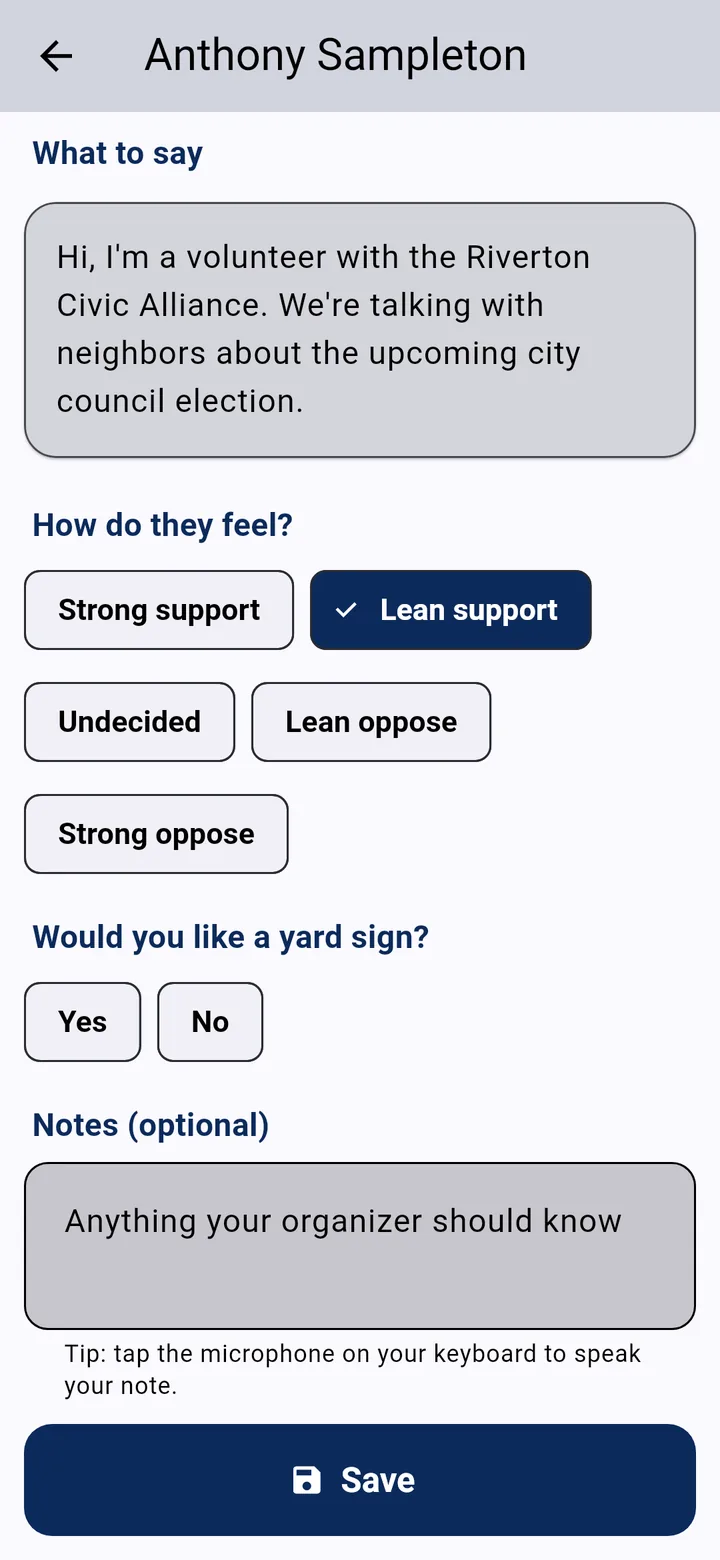
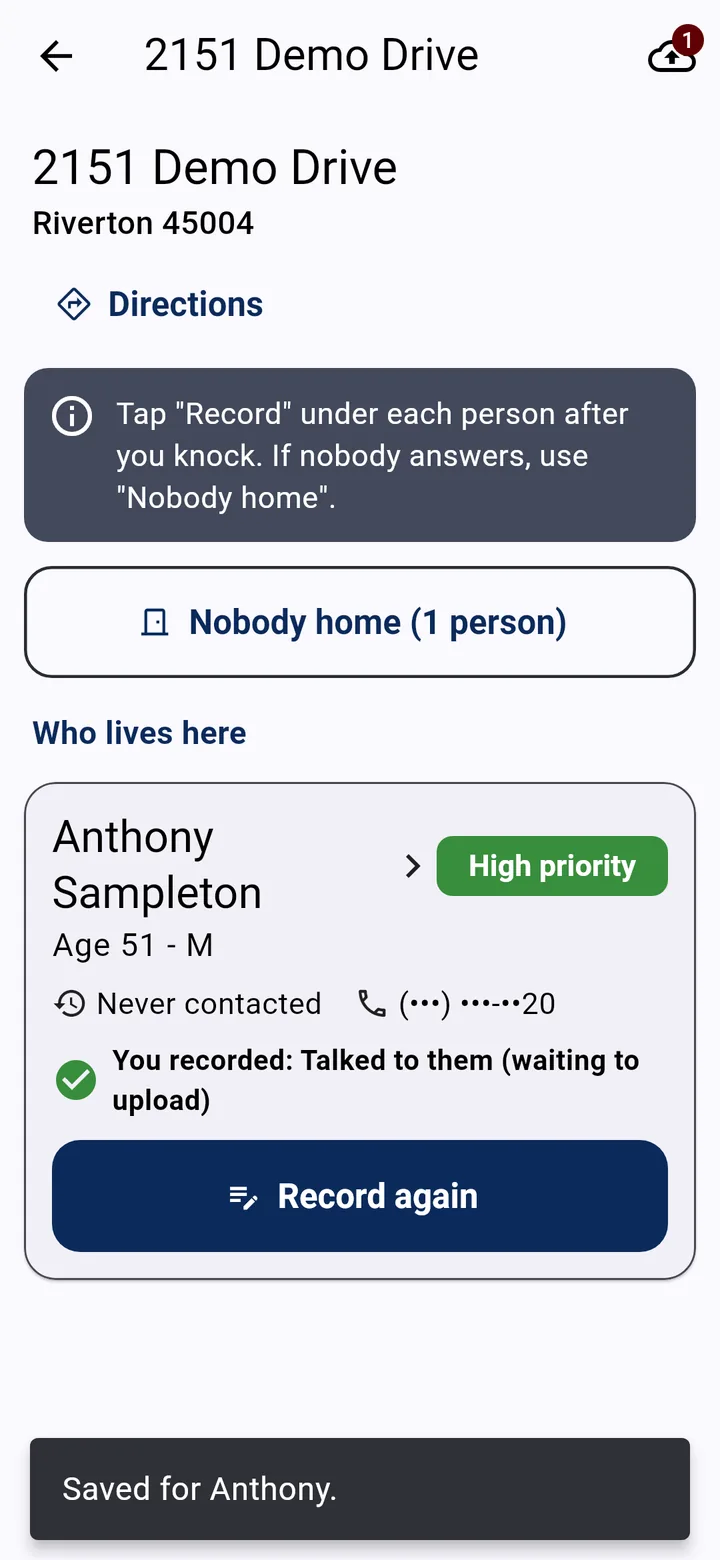
- First door: someone answers. She taps the address. Anthony Sampleton answers, so she taps Record under his name and chooses that they talked. She reads from What to say, chooses his answers under How do they feel?, adds a note that he wants a lawn sign, and taps Save.
- Second door: nobody home. She swipes the door to the right, which marks everyone at that address as not home. Later, the door can come back on a list for another try.
- She loses signal. She keeps going. A banner shows how many results are waiting. When she's back in range they upload by themselves, each one exactly once.
- She finishes. She taps Finish outing. Her results are already saved.
The website, step by step
Signing in
- Go to the ElectorEra home page and sign in with your username or email and your password.
- If your account uses two-step sign-in, type the 6-digit code from your authenticator app.
- If you work on more than one campaign, choose the right one at the top of the page. Everything you see then belongs to that campaign.
Finding your way: the menu on the left groups everything you can do. Hover over any button for a short explanation. To protect your account, you can turn on two-step sign-in from the security settings in your account menu.
Finding people and building lists
- Quick Look Up finds one person by name, phone or email.
- Create a List builds a list step by step, such as everyone in one precinct who voted in the last election.
- My Folders keep saved lists tidy and shared with the right people.
Planning where to knock
- Open Where to Go and press New strategy. Make three choices: the past election, the contest and your candidate. Then press Create strategy.
- Read the precinct groups:
- Turnout opportunity: people favor your candidate, but fewer of them voted.
- Close: it could go either way.
- Base: already strong.
- Leaning away: the hardest ground.
- Check the score. Each voter gets a score from 0 to 1 that blends how their precinct voted, how often they vote and anything they've told the campaign. It only suggests who to visit first. It says nothing about how anyone voted.
- Open Field Plan, enter your volunteers, shifts a week and doors a shift, and press Build plan. You get a door goal for each week.
Turfs: walking areas
- On a strategy page, press Cut turfs. Choose a precinct or group, the doors per turf and a minimum score.
- ElectorEra groups voters into households and splits them street by street, odd side and then even side.
- Check the result under My Turfs. Use Designer to change a turf's boundary or who is in it.
- On the home page, open the turf assignment link. Choose a turf and a volunteer, then press Assign.
Scripts: what volunteers say
Under Scripts and Questions, write the words volunteers say at the door and the questions they ask. Only an approved door script is sent to the app. Volunteers get a new script the next time they download their list.
To make questions depend on the answers, press Question order on a script. For each answer, choose the next question or End the script. For example, if someone says "No", you can end the script instead of offering a lawn sign. An answer can only lead to a later question, so a script can never go in circles.
Bringing in volunteers
- Open Volunteer Join Links.
- Name the link, then choose the role, how many people can use it and how many hours it works. You can also attach a turf.
- Press Create link and QR code. Copy it now, because it's only shown once.
- Share it by message or show the QR code at your briefing. Use Switch off if it was shared too widely. People who already joined keep their access.
The public download page and its own QR code are at the MiniElect download page.
Following results
| Page | Use it to… |
|---|---|
| Live Volunteers | See who is out knocking right now. |
| Daily Briefing | See this morning's doors, conversations, pace and ballots on one page. |
| Canvass Results | See doors tried, conversations and how voters responded. |
| Ballot Chase | Find likely supporters who haven't returned a ballot. This needs the county's ballot-return file to be loaded. |
| Clean-up | Find voters who seem to have moved, so nobody walks to an empty door. |
| Re-knock Rules | Decide when a door comes back on the list after each kind of result, or never. |
Recording contacts on the website
Use Campaign Contact to record one call or conversation, or Quick Mark to mark many people at once.
Downloading data
Open Export Requests and state the business purpose and who will receive it. Where your organization requires approval, an approver checks the request first, and you can't approve your own. Finished files appear in My Export Files.
Managing users
Under Users, administrators can add people, change their roles or turn accounts off. Roles and Permissions shows what each role can do.
Install MiniElect
Android
- On your phone, open the download page, or scan the QR code your organizer gives you.
- Tap Download for Android and open the file when it finishes. The file is large, so Wi-Fi is best.
- If your phone asks, allow your browser to install apps. This is normal for apps that don't come from the Play Store.
- If you see a Play Protect warning, choose More details → Install anyway.
iPhone
The iPhone version isn't available yet. Apple only allows installing through its own services, so the link will appear on the download page once it's approved.
Updating
The Android app doesn't update by itself. When your organizer says there's a new version, download it from the same page and install it over the old one. Your lists and results stay on the phone.
The app, step by step
Getting in
The first screen offers three choices:
- Join with an invite: your organizer gave you a link, code or QR code. You don't need a password. Scan or paste it, then type your name.
- Sign in to ElectorEra: you already have a username or email and password. They're the same ones you use on the website.
- Use without an account: make your own lists, kept only on this phone. See below.
The tabs at the bottom
| Tab | What it's for |
|---|---|
| Today | Your doors today and this week, your team's progress, days until Election Day and tips. Pull down to update. |
| My turfs | The areas assigned to you. Download them here. |
| Organize | Tools for organizers. It only appears if your role allows them. |
| Settings | Your account, uploads, light or dark look, and privacy options. |
Before you go out
- While you have signal, open My turfs and tap Download. If you downloaded earlier, tap Update for the latest doors.
- Charge your phone. A long shift uses a lot of battery.
- Open the turf and tap Start outing. This lets your organizer see that you're out and how many doors you've done.
If your organizer gave you a list code, tap Enter a list code on My turfs to add that list.
Your location is not shared unless you turn on Share my location with my organizer, and then only while that outing is running. Next door also uses your location to find the closest door, but that stays on your phone.
Three ways to see your list
- Doors: addresses in walking order, one side of the street at a time.
- People: everyone on the list, sorted by last name.
- Map: each door as a pin. The pins work with no signal, but the street picture behind them needs internet. A note tells you if some doors couldn't be placed on the map, so check Doors for those.
Tap Next door to go to the closest door you haven't finished. If your location is off, it uses walking order instead. On a door, Directions and Street View open your phone's maps, which shares that address with the maps app.
Filters
Tap the filter button to show one side of the street, only people not contacted yet, or high priority only. You can also hide people who already voted, or hide finished doors.
What the icons mean
Each person at a door has their own icon. The People view shows the words too, and the filter screen lists what each icon means.
- Empty circle: not visited.
- Check mark: talked.
- Door: not home.
- Minus sign: another result, such as a flyer left or moved away.
Voted means records show the person voted in the latest election on file. Nobody can see how anyone voted. A teammate visited means someone else on your list has been to that door. It updates after your phone uploads, when you have signal.
At each door
- Tap the address to see who lives there.
- If someone answers, tap Record under their name and choose what happened. Use What to say if you'd like the script, choose an answer under How do they feel?, and answer any survey questions. The next question can depend on their answer.
- Add notes if useful. To speak a note, tap the microphone on your keyboard. Turn on Needs a follow-up if your organizer should contact them.
- Tap Save.
- If nobody answers, swipe the door to the right on your list, or open it and tap Nobody home. That marks everyone at the address, except anyone you've already talked to.
- For other quick results, press and hold a door or a person, then choose one, such as a flyer left. In People, a shortcut marks only that one person.
- If you made a mistake, tap Record again and save the correct result.
A person's page
Tap someone's name to see their earlier visits and survey answers. If they give you a phone number or email, tap Add. It uploads with your results, and it never replaces details already on file. All of this works with no signal.
If a person is marked Do not contact, they asked not to be contacted, so please don't knock for them. If you see Someone is already here, another volunteer is at that door, so move on to the next one.
Tracking your progress
The top of the list shows how many doors are done. Tap the progress button at the top of the screen for your totals and how people feel. The app celebrates your first conversation, then 25%, 50% and 75% of the list. When you finish the list, it offers to upload your results. Then tap Finish outing.
Language
MiniElect follows your phone's language in English, Spanish or French. To choose a different one, go to Settings. Scripts and questions appear in the language your campaign wrote them.
Working with no signal
- Downloaded lists work with no signal, even in airplane mode. Only the first download and uploads need internet.
- Each result is saved on your phone the moment you tap Save. You can close the app or restart the phone without losing it.
- A banner shows how many results are waiting. They upload by themselves once you're back in range, or you can tap Sync now.
- Results keep the time you recorded them, not the time they uploaded.
- You'll see All results uploaded when everything has arrived. Check for it before you sign out, because signing out deletes anything still waiting. The app warns you first.
Organizer tools in the app
These appear under the Organize tab if your role allows them. They need internet.
- Invite volunteers: make a QR code or link that new volunteers scan to join.
- Assign turfs: give a turf to a volunteer.
- Who is out now: see volunteers canvassing right now and their doors.
- Users and roles: add people, turn accounts on or off, and change roles.
- Find a voter: search the voter list by name.
Using the app without an account
MiniElect also works on its own, for example for a small local group. Nothing goes to ElectorEra.
- On the first screen, tap Use without an account.
- In My lists, tap New list. Choose Type in doors myself or Import a spreadsheet (CSV). A spreadsheet should have columns like first_name, last_name, house_number, street, city and zip.
- Tap Add door and Add person to build the list. Then record doors the same way as above.
- When you're done, tap Share results (CSV) to send your results as a spreadsheet.
These lists exist only on your phone. If you delete the app, they're gone, so share your results first.
Looking after voter information
- Use voter information only for the campaign's work. Don't copy it, screenshot it or pass it on.
- Lock your phone with a passcode. Don't lend it to anyone while you're signed in.
- Respect anyone who asks not to be contacted, and record it so nobody comes back.
- Downloaded voter details stay inside the app and are deleted after 14 days or when you sign out. You can also remove them right away under Settings → Remove voter data from this phone.
- If your phone is lost or stolen, tell your organizer immediately so they can turn off your access.
When something goes wrong
- I can't sign in on the website or the app
- Check your username or email and password, which are the same on both. After too many failed tries your account locks for a while. If it still doesn't work, ask your administrator.
- My invite code doesn't work
- It may have expired, been used up or been switched off. Ask your organizer for a new one.
- I have no turfs
- Your organizer needs to assign one. Once they have, pull down on My turfs to refresh.
- My list is empty or a door is missing
- Tap Update while you have signal. Doors can leave the list because of the campaign's re-knock rules or a do-not-contact request. If it still looks wrong, ask your organizer.
- Results aren't uploading
- Get to a place with signal and tap Sync now. If the app says Upload problems, ElectorEra didn't accept those results. A copy stays on your phone, so show the list to your organizer before you tap Dismiss.
- The app signed me out
- Sign in again as the same person. Your lists and waiting results are kept and will upload. If a different person signs in on that phone, the previous person's voter data is removed.
- I can't find a menu item on the website
- Your role probably doesn't include it. Ask your administrator.
- I need more help
- Volunteers should ask their organizer first. Staff can file a request under Help → Support Requests once signed in.